WorkProcessSkillsAboutContactDownload CV
Case study · Fintech · Mobile · KYC

One app to send, pay and verify.

Client
Noble Pay · USA and Liberia
My role
Senior UI/UX Designer
Type
Contract, 2024
Status
Launched on iOS and Android

01Problem

Sending money between the USA and Liberia is costly and unclear. Many people can't get full bank accounts because of ID and KYC rules. And paying bills and merchants digitally is hard.

Noble Pay brings sending, paying and verifying into one app.

02Role

I was the Senior UI/UX Designer on Noble Pay. I designed:

  • Payment and money-transfer flows
  • Onboarding and KYC
  • The mobile UI

I also contributed to the design system.

03Process

  • Study. I looked at competitor apps.
  • Talk. I talked with the team or users.
  • Map. I mapped the flows and user journeys.
  • Test. I tested a prototype.

04Solution

The part I'm proudest of is the overall experience: home, pay, scan and security working together as one app.

Send money

  • The user picks the recipient country, enters the amount, and sees what the recipient gets and the exchange rate before starting.
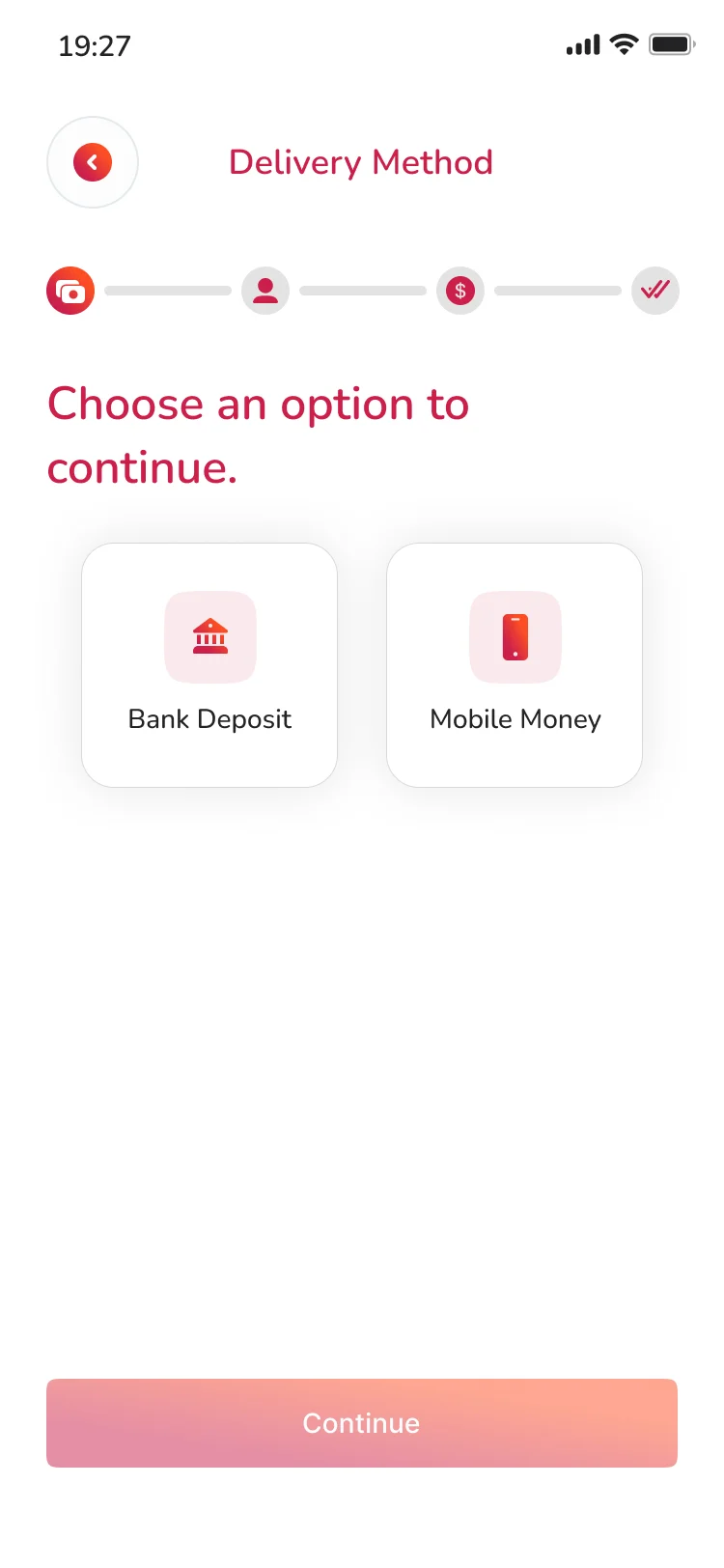
  • A progress tracker runs through the flow. The user chooses a delivery method, either a bank deposit or mobile money.
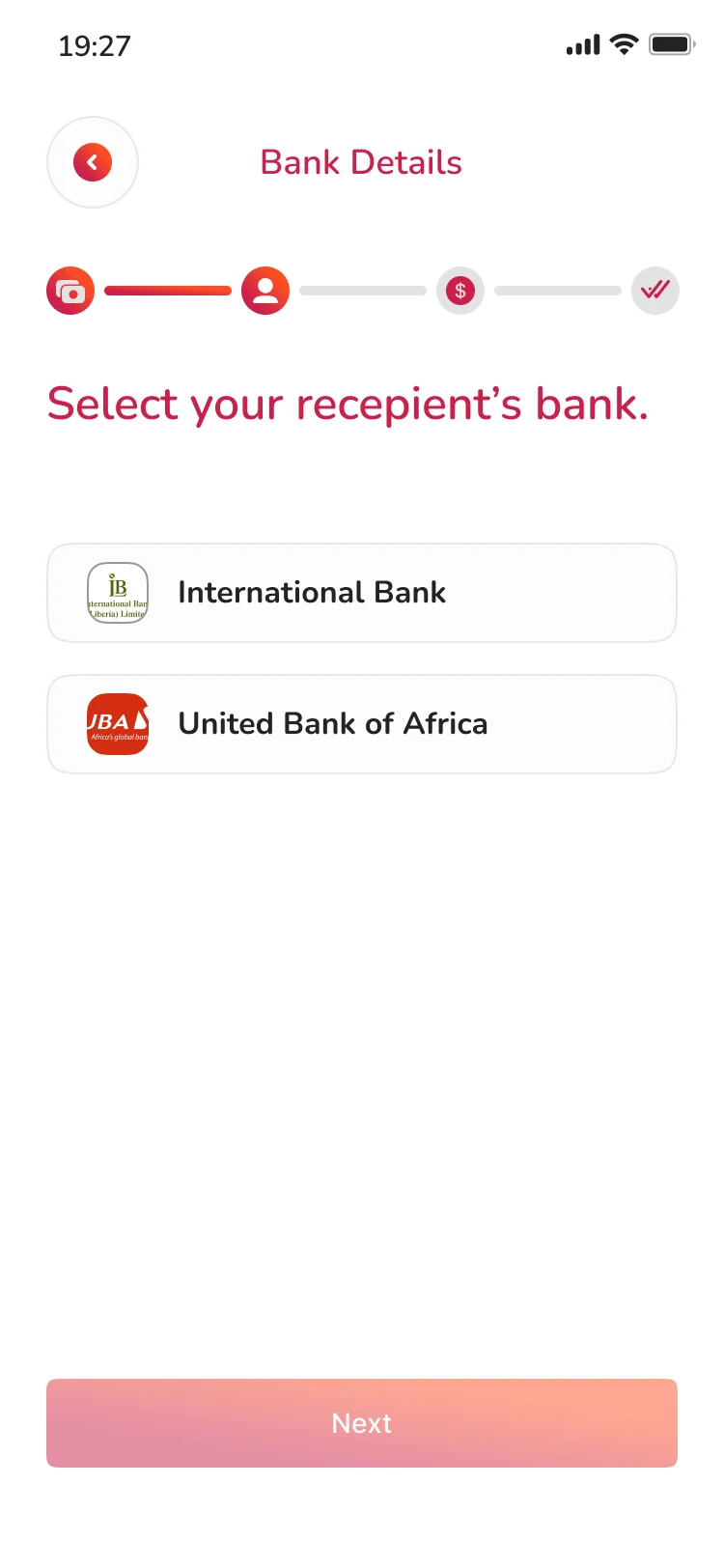
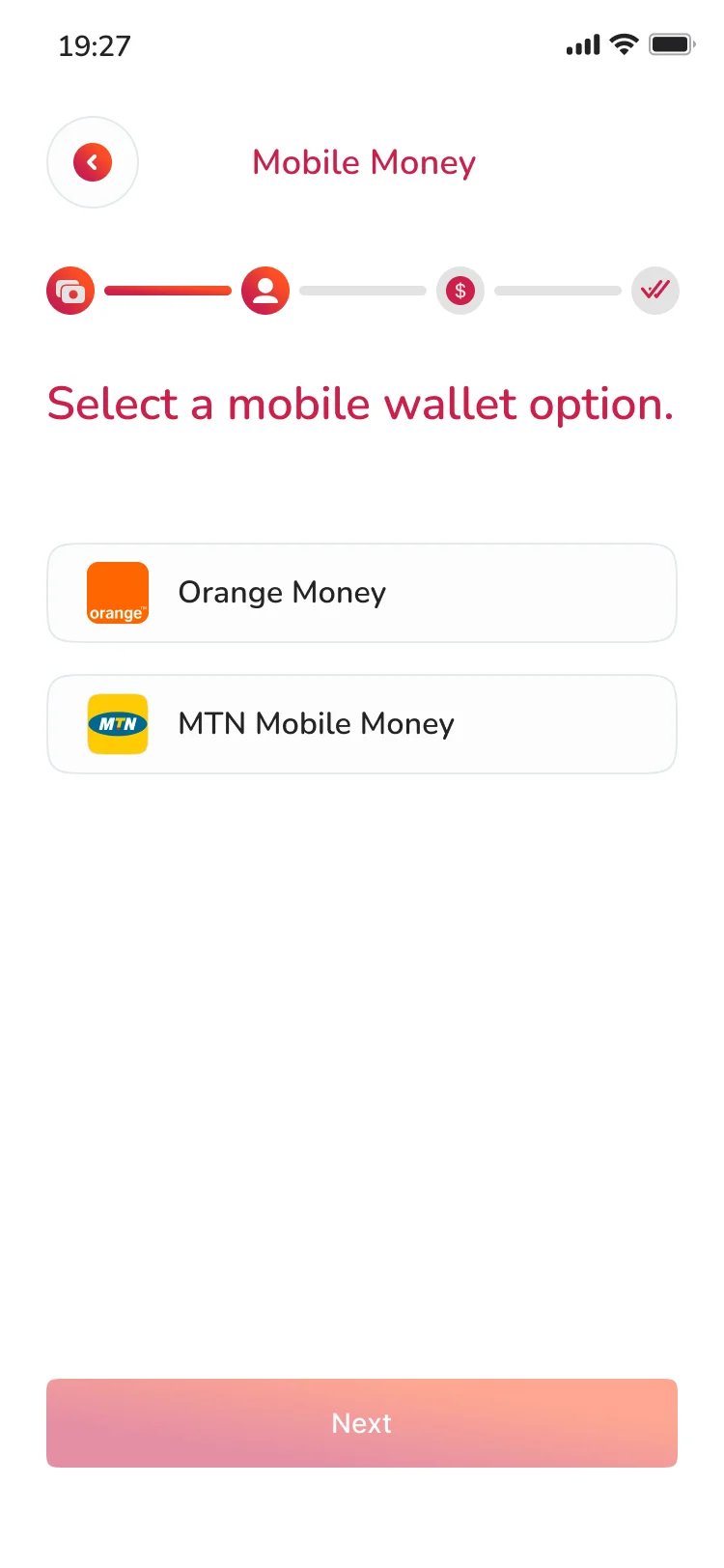
  • For a bank deposit they choose the recipient's bank. For mobile money they choose a wallet such as Orange Money or MTN Mobile Money.
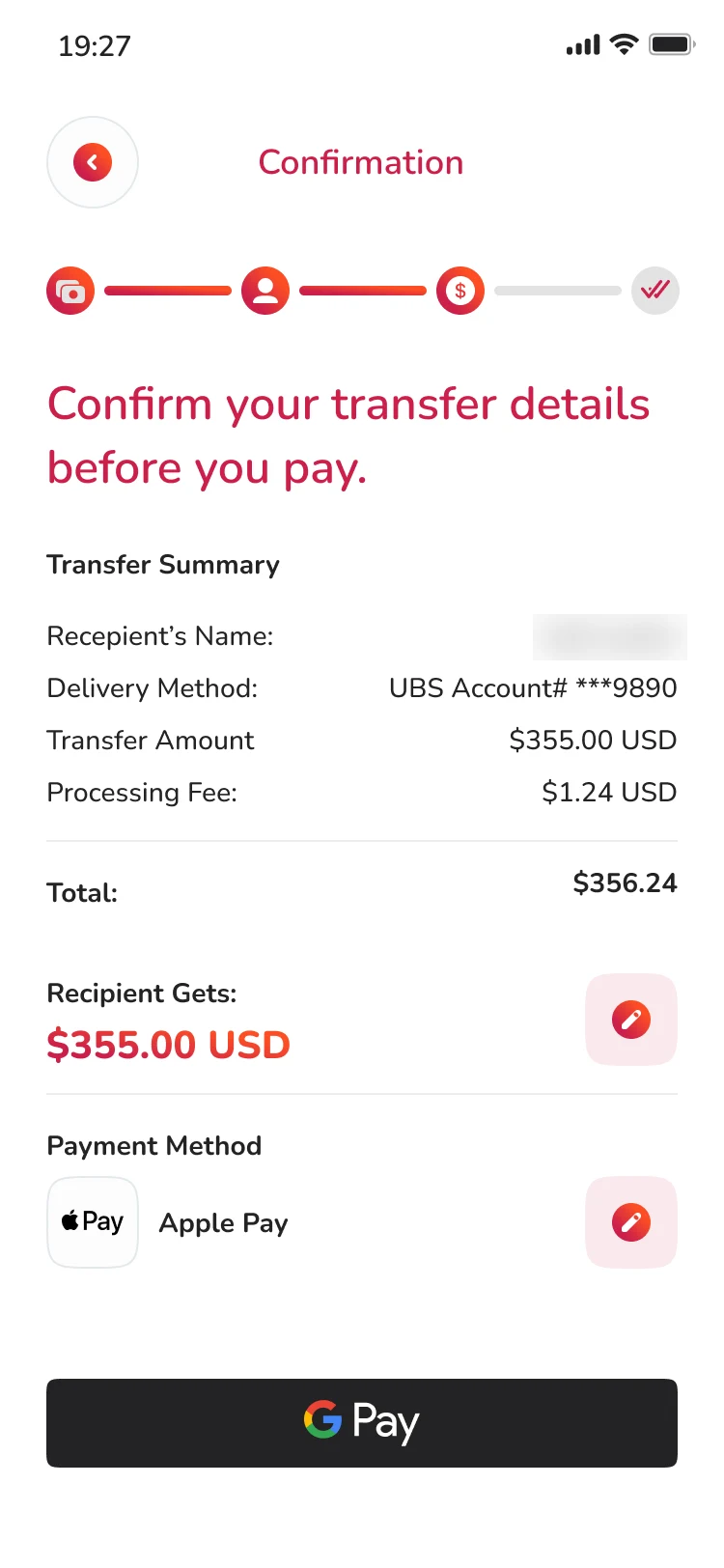
  • A confirmation screen lists the transfer summary, the fee and the total, and the payment method, with Apple Pay and Google Pay available.
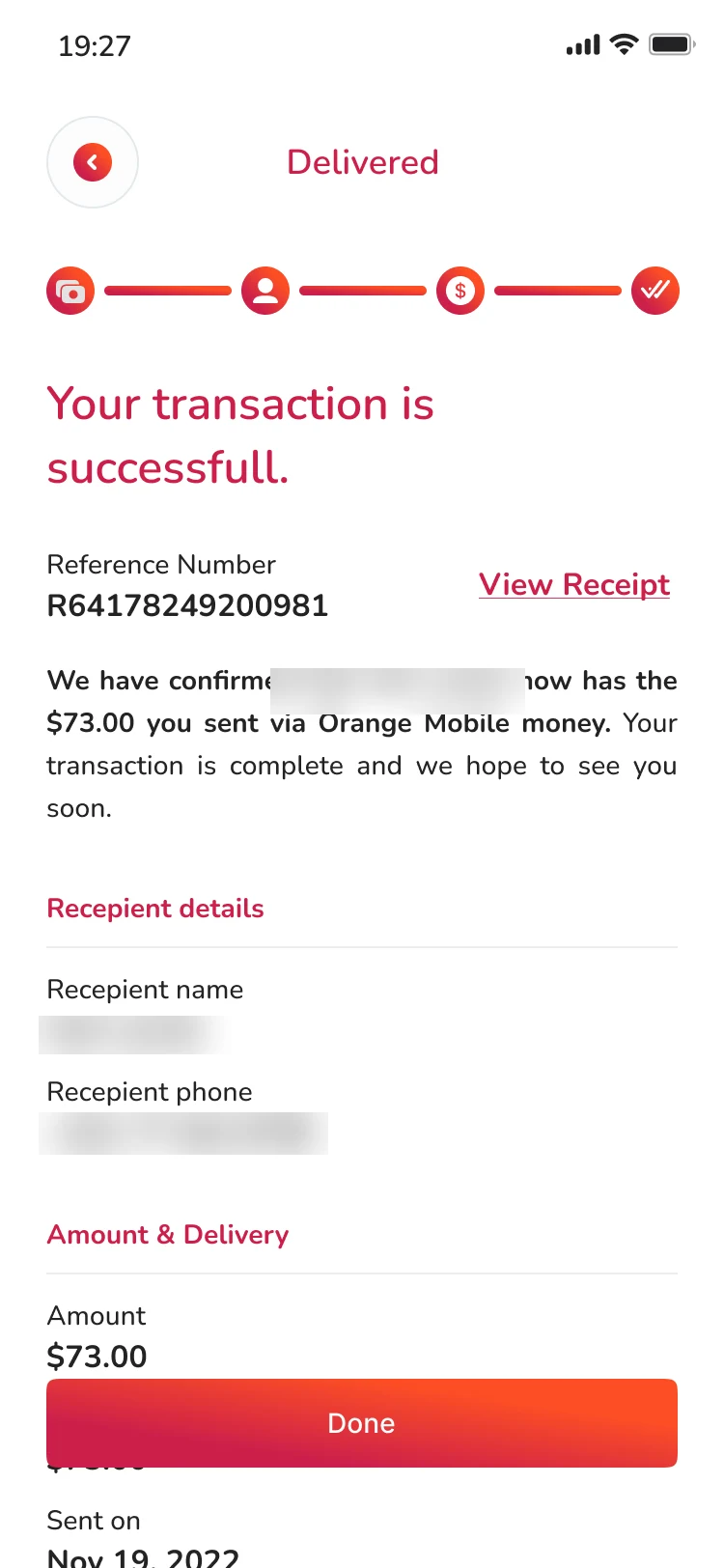
  • A delivered screen gives a reference number, a link to the receipt and the recipient's details.
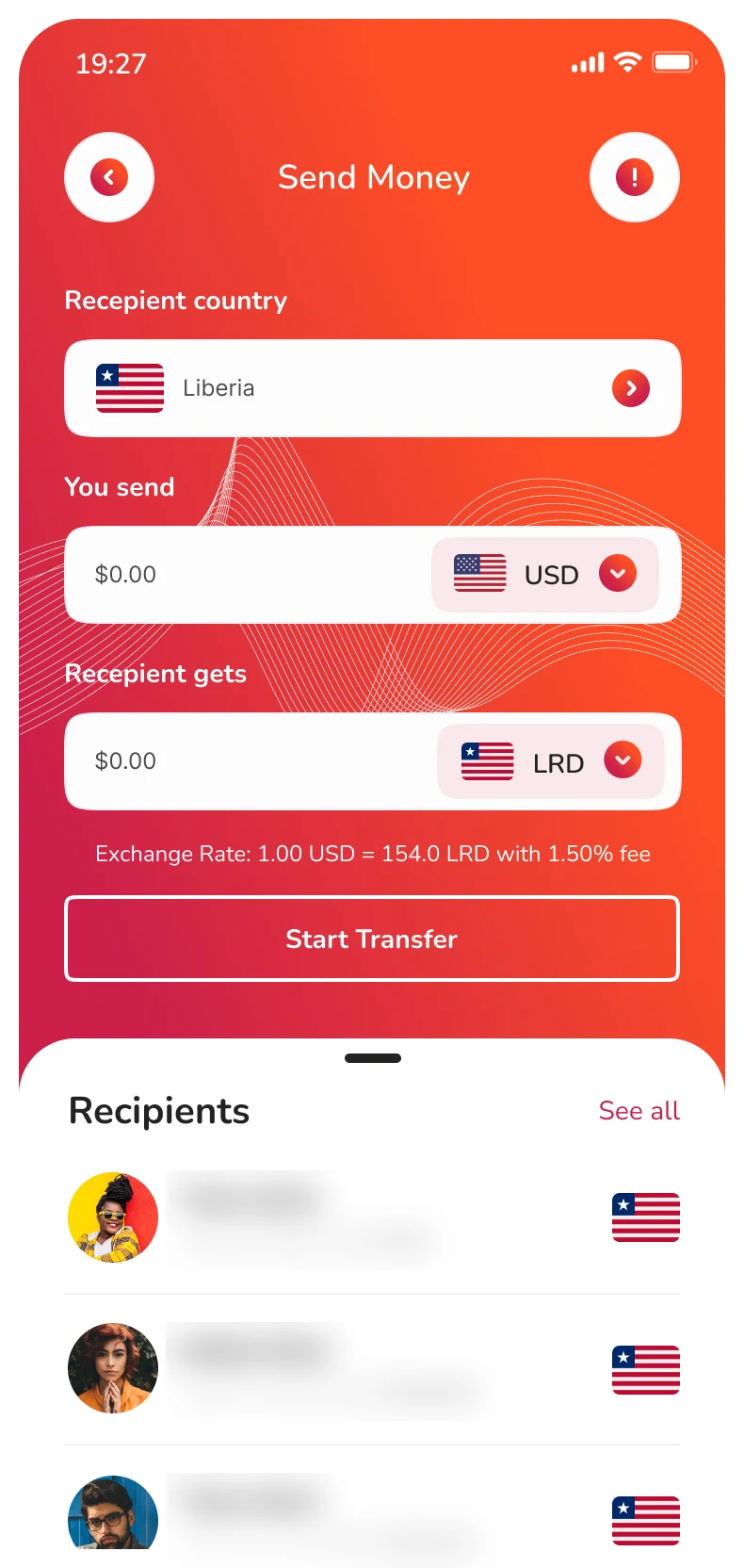
Noble Pay send money screen: choose a recipient country, enter the amount to send and the amount the recipient gets, with the exchange rate, and a list of recipients. Names and numbers are blurred
Recipients and amounts
Noble Pay delivery method screen with two options, bank deposit and mobile money, and a progress tracker
Delivery method
Noble Pay screen asking the user to select the recipient's bank from a list
Choose a bank
Noble Pay screen asking the user to select a mobile wallet, Orange Money or MTN Mobile Money
Mobile wallet
Noble Pay confirmation screen with a transfer summary, the recipient gets amount, the payment method and a Google Pay button. The recipient name is blurred
Confirm the transfer
Noble Pay delivered screen: a success message, a reference number, a link to the receipt and recipient details. Names and phone number are blurred
Delivered

Onboarding

  • A splash screen and a get-started screen lead into three short intro screens: send money, merchant pay and mobile recharge.
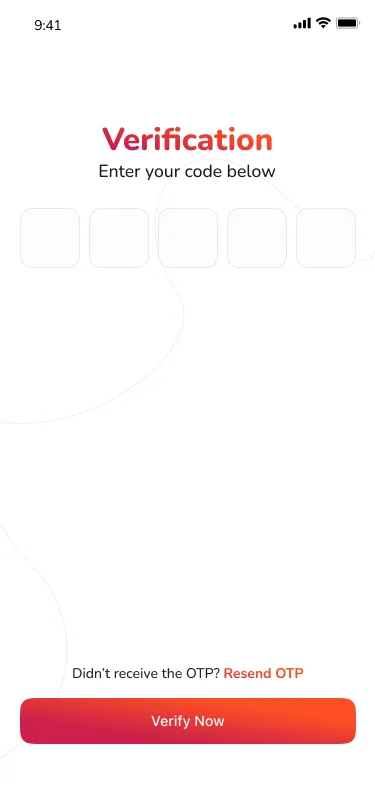
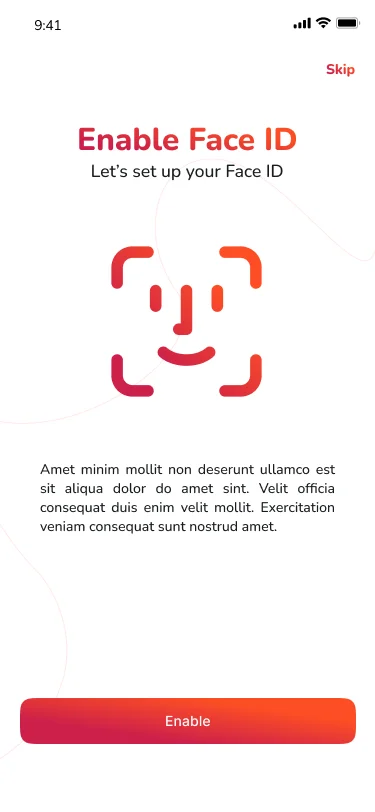
  • Sign-up is split into steps, followed by verification with a one-time code and an option to enable Face ID.
Noble Pay splash screen with the logo and the words From Noble Pay Global
Splash
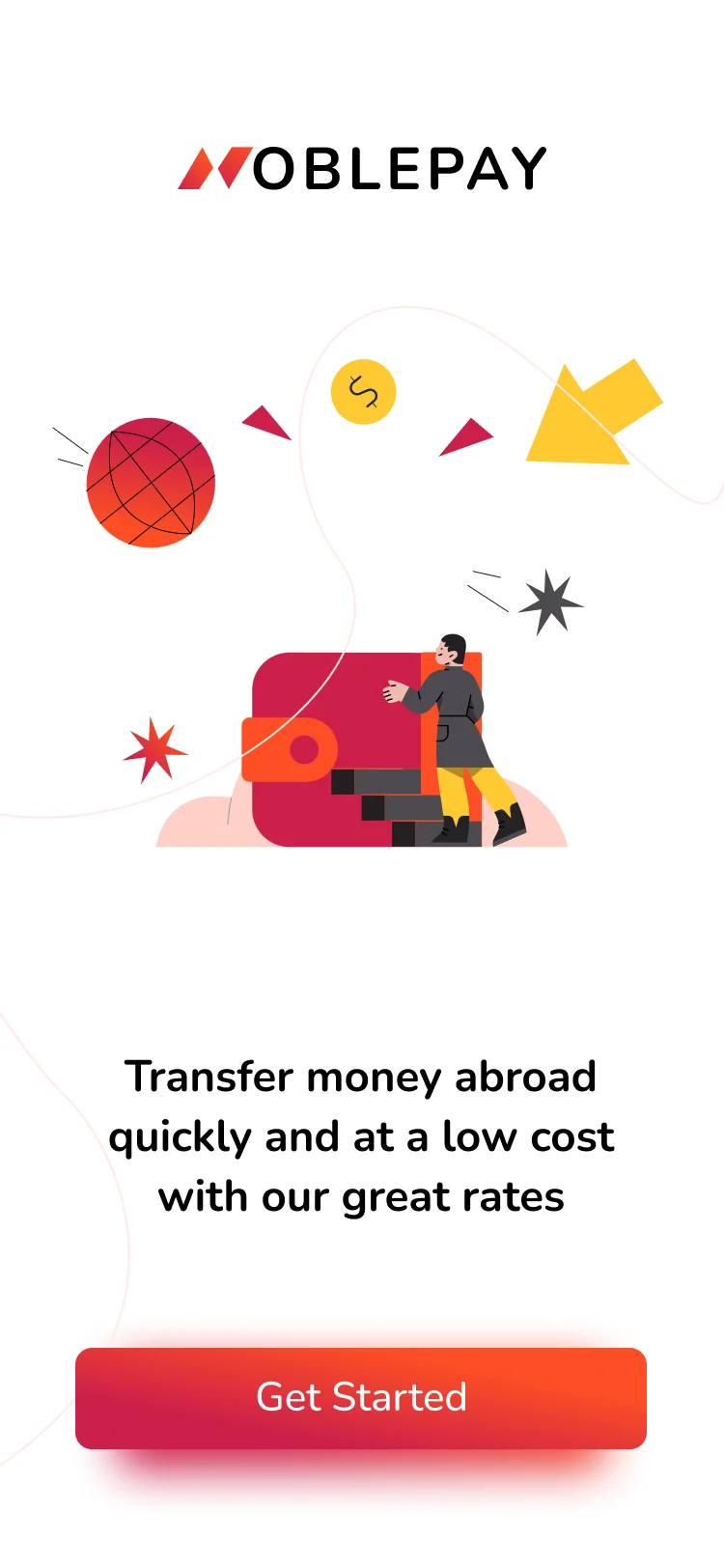
Noble Pay get started screen with an illustration, the line Transfer money abroad quickly and at a low cost, and a Get Started button
Get started
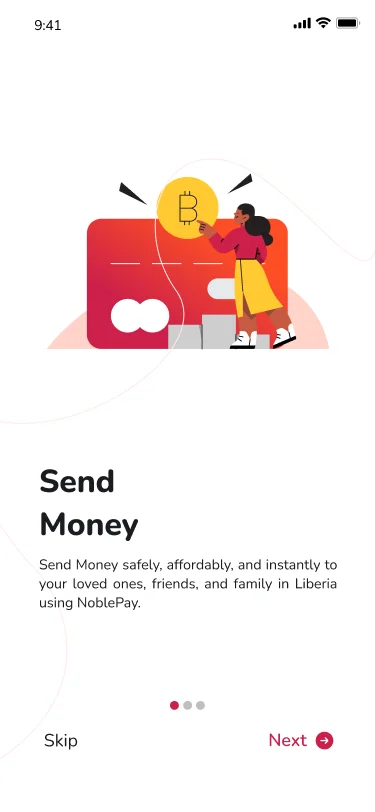
Noble Pay intro screen about sending money to family and friends in Liberia
Intro: send money
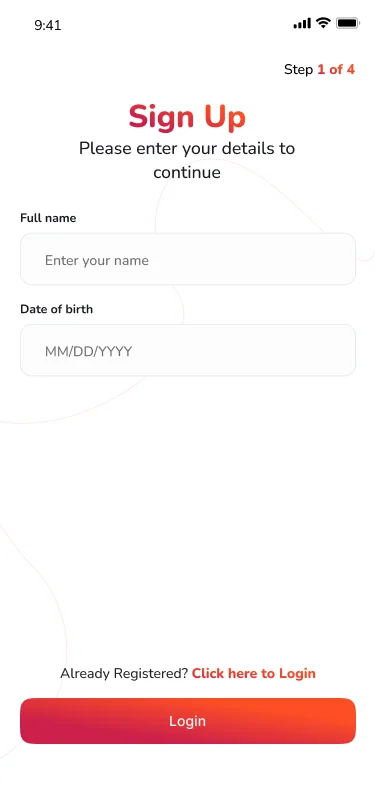
Noble Pay sign-up screen, step 1 of 4, asking for full name and date of birth
Sign up
Noble Pay verification screen with five boxes for a one-time code and a resend link
Verify with a code
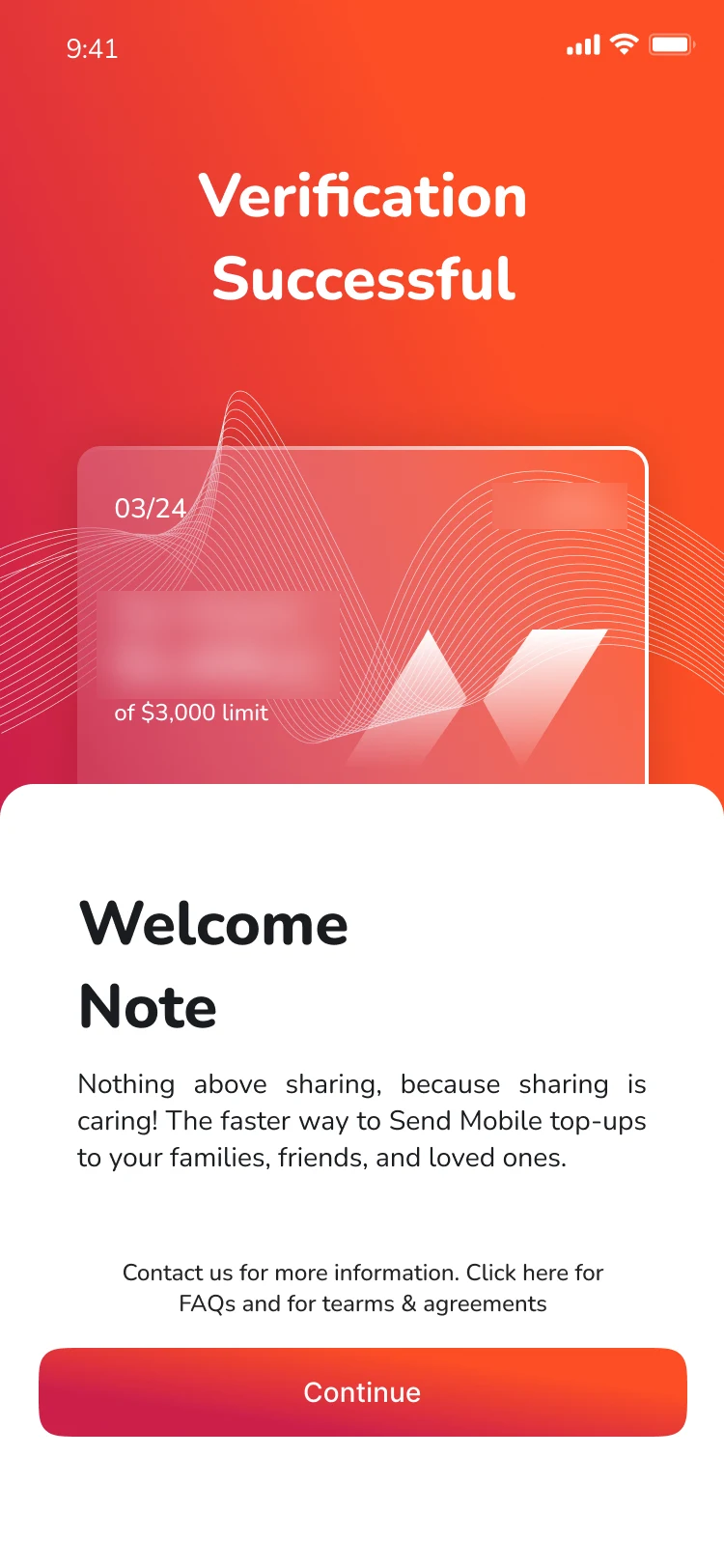
Noble Pay verification successful screen with a card showing a limit. The balance and card digits are blurred
Verification successful
Noble Pay screen inviting the user to enable Face ID
Enable Face ID

KYC and sending limits

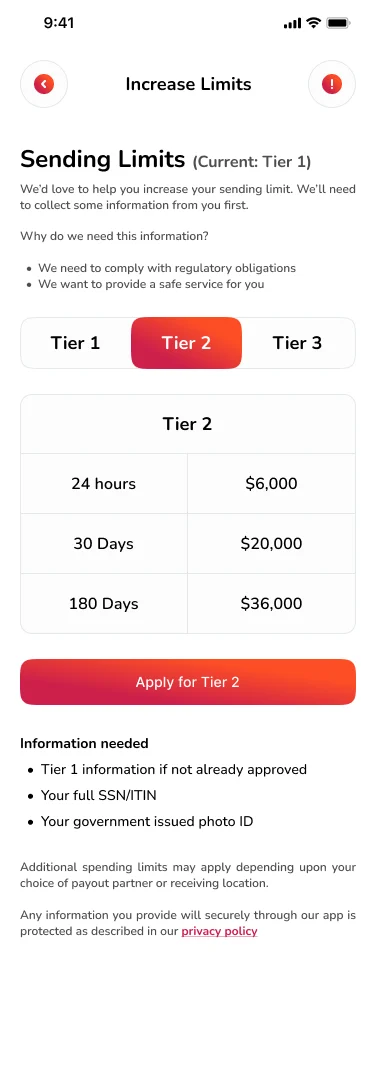
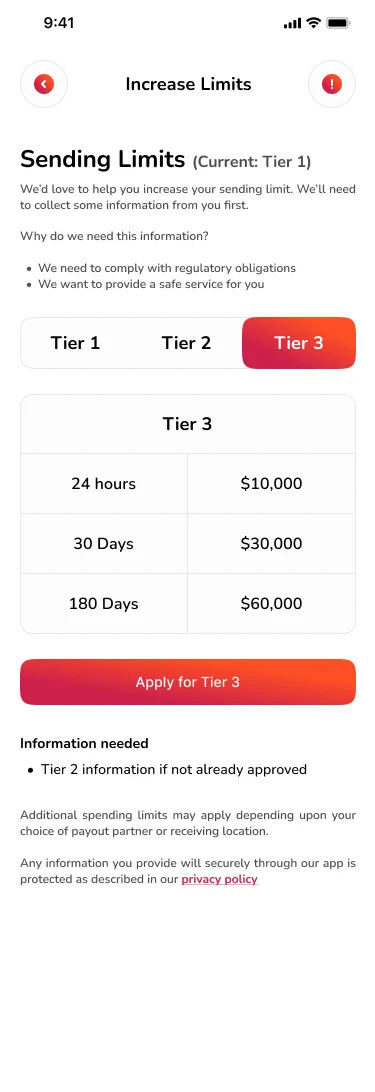
  • Sending limits are organized into three tiers, each with limits for 24 hours, 30 days and 180 days.
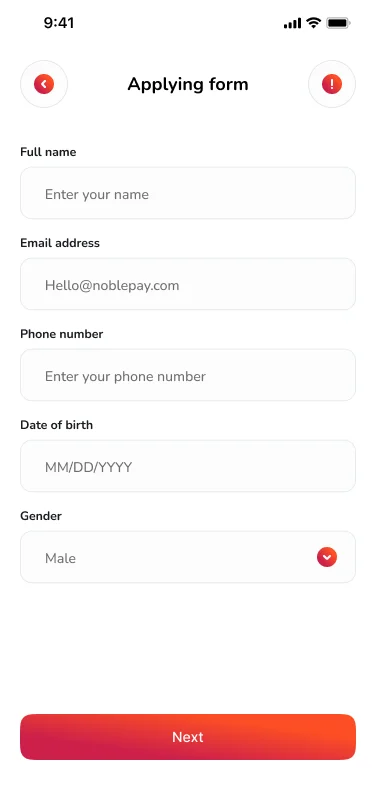
  • Each tier says what information is needed and why, and has an application form.
  • Users can start at Tier 1 and apply for a higher tier when they need it.
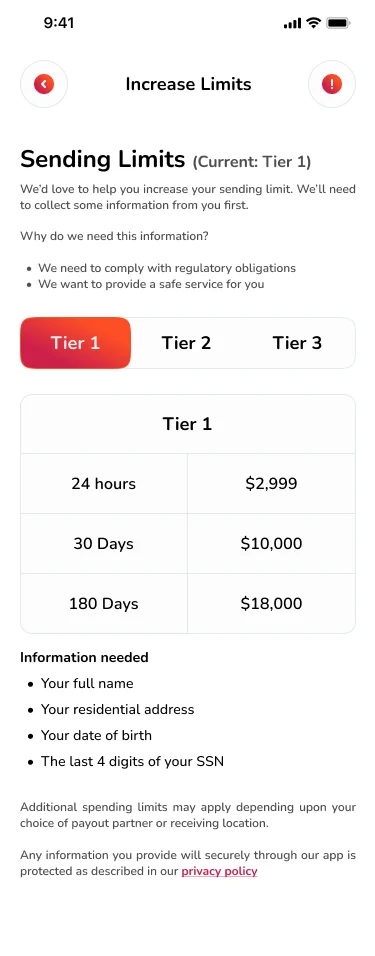
Noble Pay Increase Limits screen showing Tier 1 sending limits over 24 hours, 30 days and 180 days, and the information needed
Tier 1
Noble Pay Increase Limits screen showing Tier 2 sending limits, an Apply for Tier 2 button and the information needed
Tier 2
Noble Pay Increase Limits screen showing Tier 3 sending limits and an Apply for Tier 3 button
Tier 3
Noble Pay application form asking for full name, email, phone number, date of birth and gender
Application form

Pay merchants and bills

  • Scan to pay, with the user's own QR code a tap away.
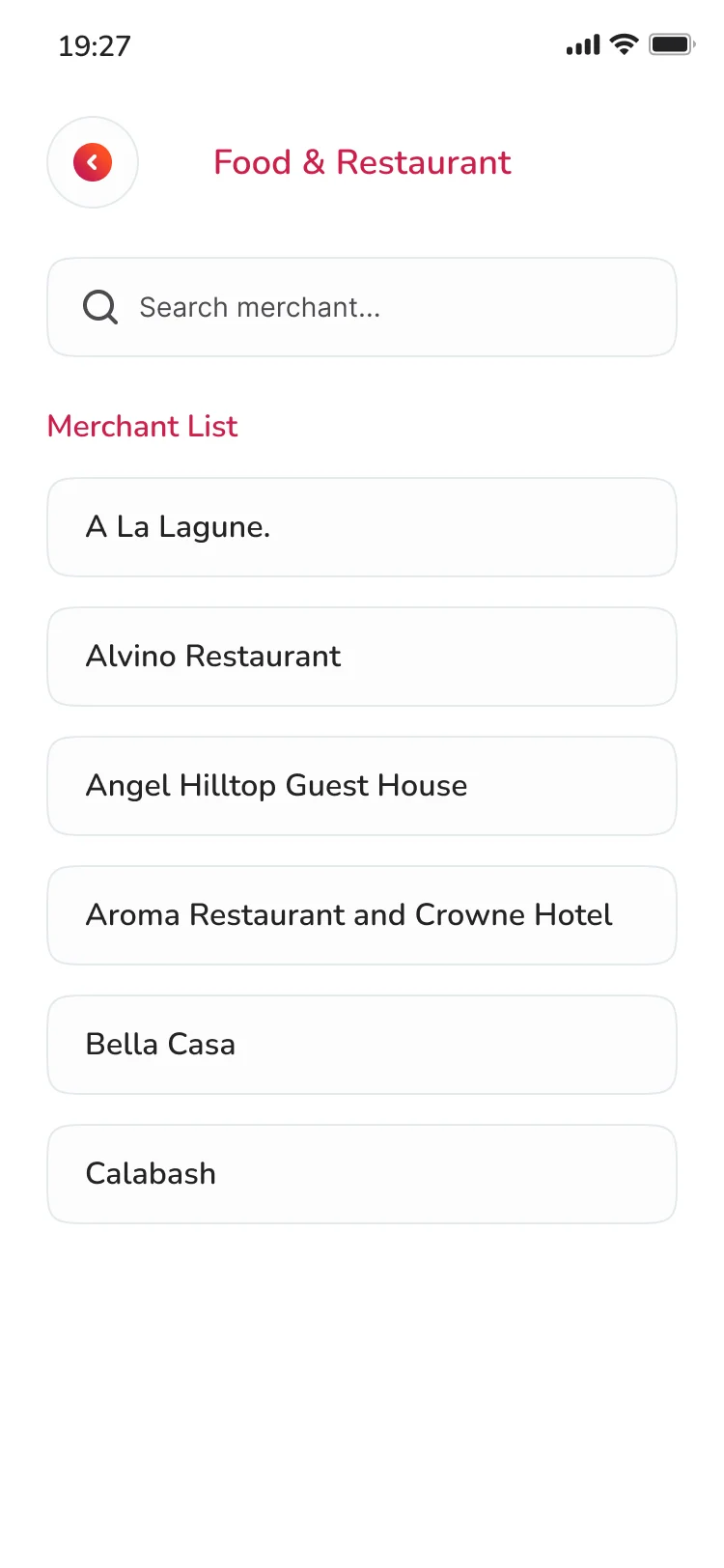
  • A searchable merchant list, grouped by type.
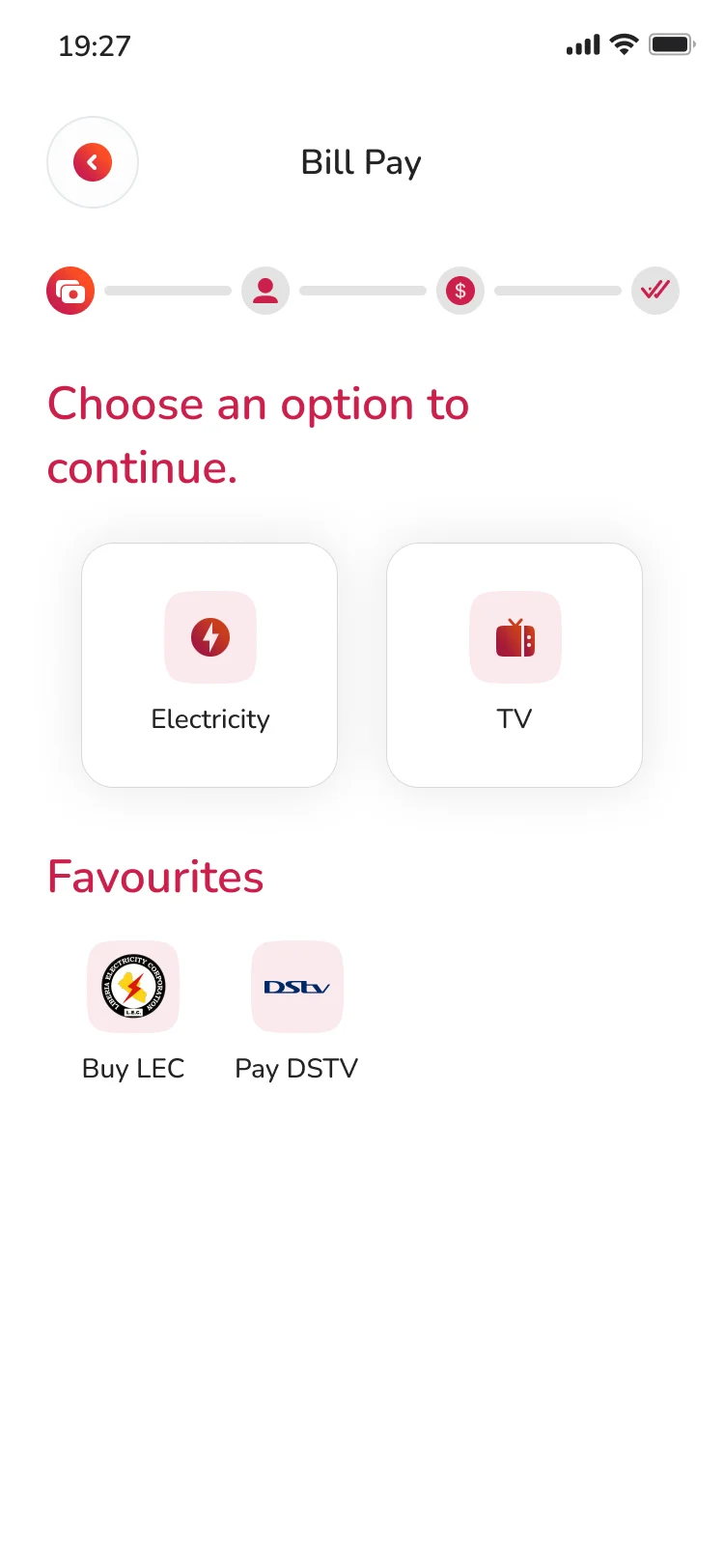
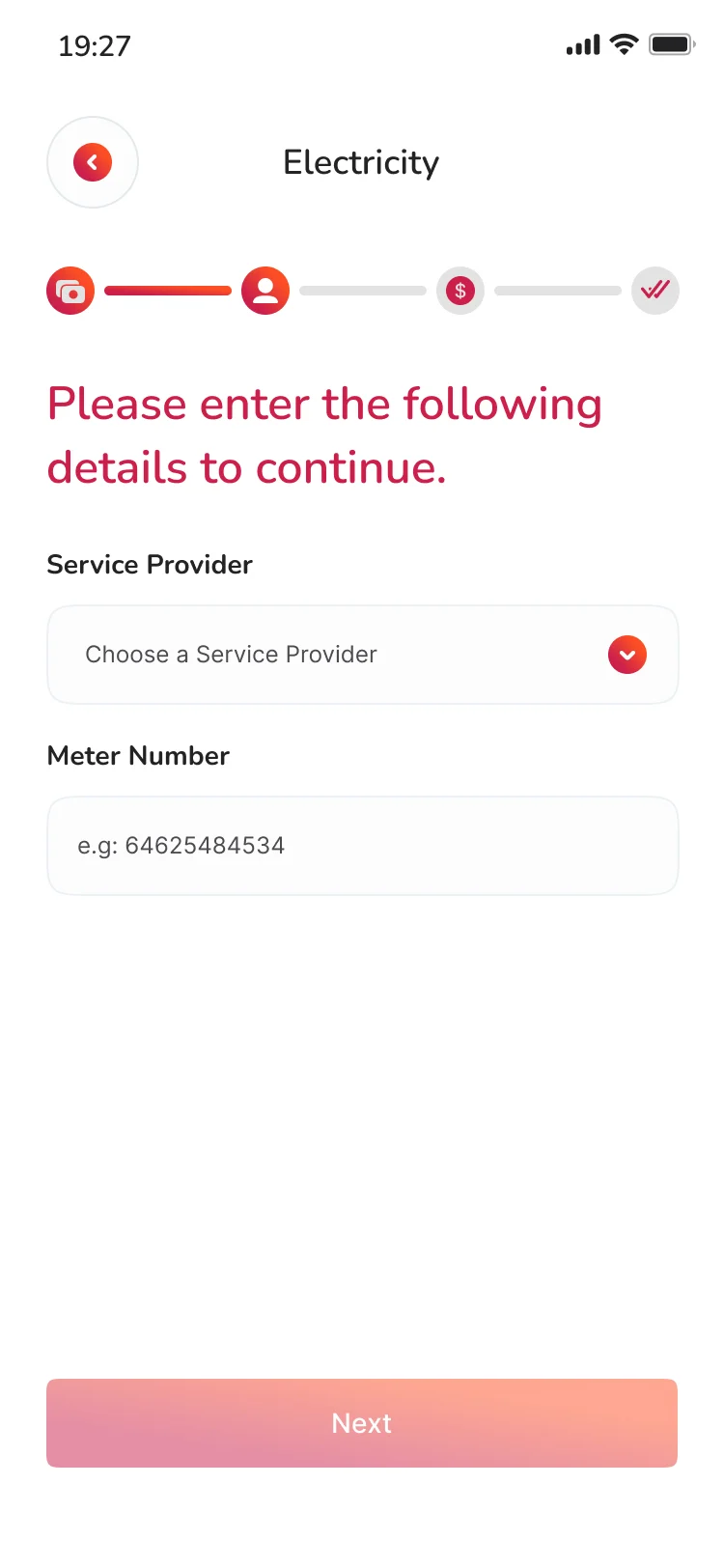
  • Bill pay for services such as electricity and TV, with favourites for repeat payments.
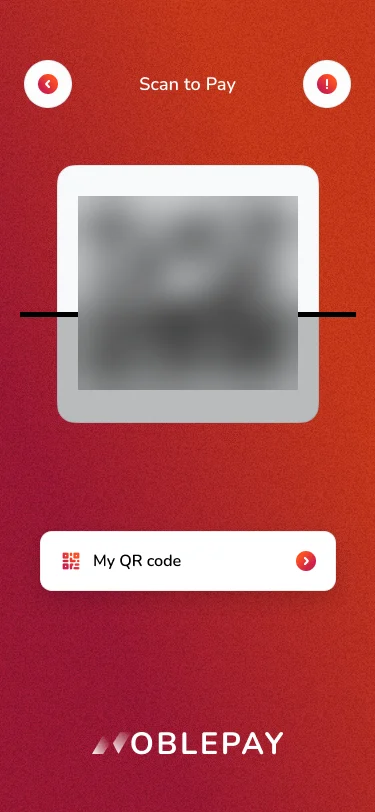
Noble Pay scan to pay screen with a QR scanner area and a My QR code button. The QR code is blurred
Scan to pay
Noble Pay merchant list for Food and Restaurant with a search box
Find a merchant
Noble Pay bill pay screen with Electricity and TV options and a Favourites row
Bill pay
Noble Pay electricity screen asking for a service provider and a meter number
Electricity

Trust and security

  • A PIN is required to complete a transaction.
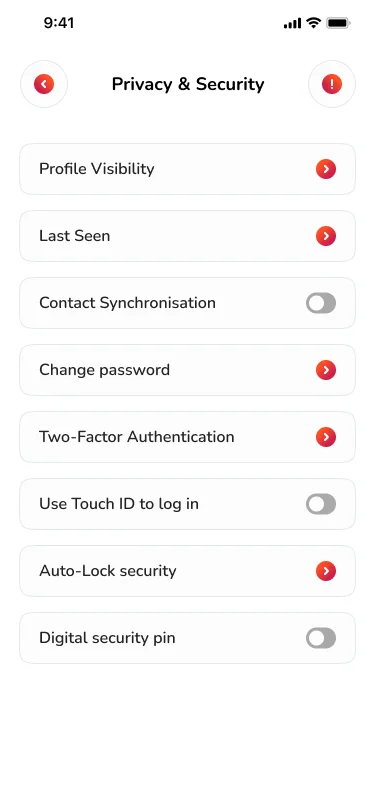
  • Privacy and security settings cover profile visibility, password changes, two-factor authentication, Touch ID and auto-lock.
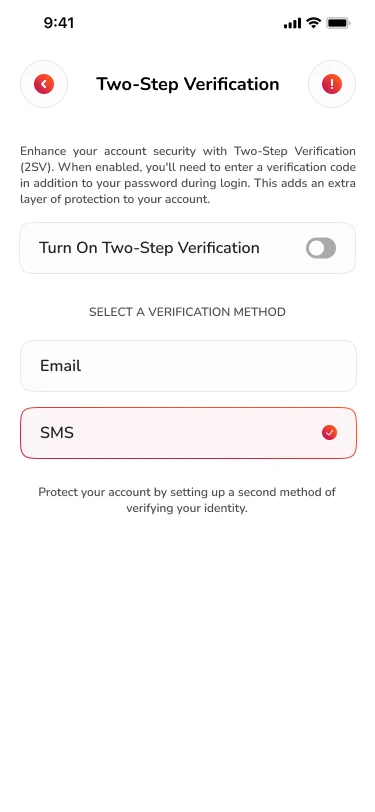
  • Two-step verification can be set up by email or SMS.
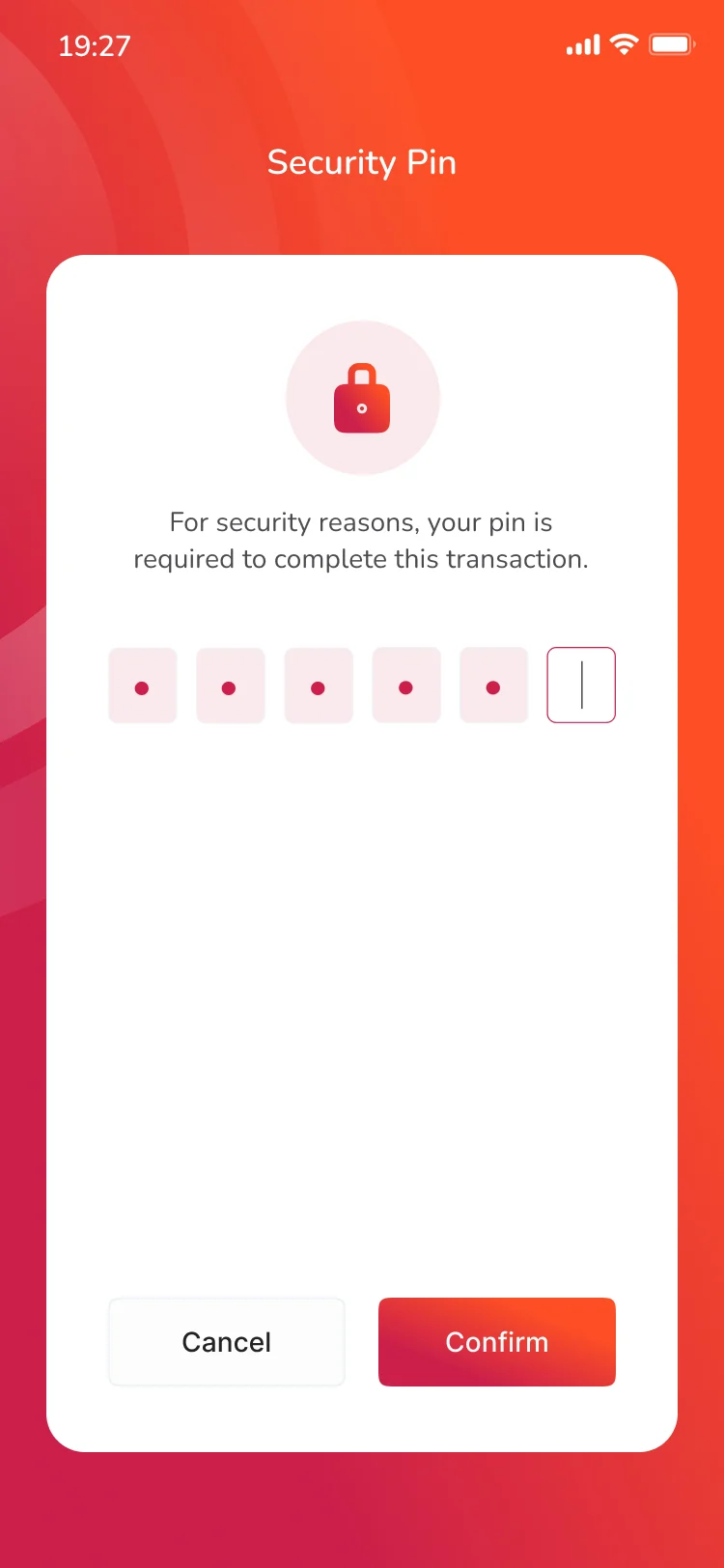
Noble Pay security pin screen asking for a PIN to complete a transaction
Security PIN
Noble Pay Privacy and Security settings list, including profile visibility, change password, two-factor authentication, Touch ID and auto-lock
Privacy and security
Noble Pay two-step verification screen with a switch and a choice of email or SMS
Two-step verification

05Result

Launched on iOS and Android.